Xero Quick Start
Everything you know in Xero, mapped to Atlas
Atlas Quick Start Guide for Xero Users
Everything you know in Xero, mapped to Atlas. Reading time: 7 minutes
Terminology Rosetta Stone
| Xero Term | Atlas Equivalent | Notes |
|---|---|---|
| Contacts | Customers / Vendors | Atlas separates contacts into two distinct entities for AR vs AP |
| Tracking Categories | Dimensions | Custom tags for department, project, location — same concept |
| Manual Journals | Journal Entries | Same concept — multi-line debit/credit entries |
| Repeating Invoices | Recurring Invoices | Auto-generated on schedule |
| Quotes | (coming soon) | Use draft invoices as a workaround |
| Bills | Bills | Same concept |
| Spend Money | Payments Made or Journal Entry | Vendor payments or direct expense recording |
| Receive Money | Payments Received or Journal Entry | Customer payments or direct income recording |
| Bank Rules | AI Categorization Rules | Atlas adds AI confidence scoring on top of rule-based matching |
| Find & Match | Bank Reconciliation (auto-match) | Atlas uses 4-axis confidence scoring for matching |
| Fixed Assets | Fixed Assets | Same concept — with 3 depreciation methods |
| Projects | Projects | Same — with time tracking and profitability analysis |
| Payroll (regional add-on) | Payroll (built-in) | Full payroll for US, UK, CA, AU, PK |
| Files | Attachments | Upload supporting documents to transactions |
| Report Pack | Reports + Export | Generate and export BS, P&L, CF, TB |
| Organisation Settings | Settings > Organization | Company and account configuration |
| Adviser (invite) | Settings > Team Members (Accountant role) | Invite external accountants with Accountant role |
| Multi-currency | Multi-currency | Atlas supports 150+ currencies |
| Short-term Cash Flow | Dashboard Cash Flow Graph | Visual cash position trend on dashboard |
| Activity Feed | Dashboard Activity Feed | Recent transaction activity |
| Hubdoc | Settings > Import | Document capture and data extraction |
Where Did My Stuff Go?
| What You Want to Do | In Xero | In Atlas |
|---|---|---|
| Create an invoice | Business > Invoices > New | Invoices > New Invoice |
| Create a repeating invoice | Business > Invoices > Repeating tab | Invoices > Recurring tab |
| Create a credit note | Business > Invoices > New Credit Note | Credit Notes > New Credit Note |
| Enter a bill | Business > Bills to Pay > New | Bills > New Bill |
| Create a purchase order | Business > Purchase Orders > New | Purchase Orders > New PO |
| Pay a bill | Business > Bills to Pay > Make Payment | Payments Made > New Payment |
| Receive a payment | Business > Invoices > Receive Payment | Payments > New Payment |
| Create a manual journal | Accounting > Manual Journals | Journal Entries > New Entry |
| Reconcile bank transactions | Accounting > Bank Accounts > Reconcile | Banking > [Account] > Reconcile |
| Import a bank statement | Accounting > Bank Accounts > Import | Banking > [Account] > Import |
| View Chart of Accounts | Accounting > Chart of Accounts | Chart of Accounts (sidebar) |
| Set up tracking categories | Accounting > Advanced > Tracking Categories | Settings > Dimensions |
| Run Profit & Loss | Accounting > Reports > P&L | Reports > Profit & Loss |
| Run Balance Sheet | Accounting > Reports > Balance Sheet | Reports > Balance Sheet |
| Run Aged Receivables | Accounting > Reports > Aged Receivables | Reports > AR Aging |
| Run Aged Payables | Accounting > Reports > Aged Payables | Reports > AP Aging |
| Lock a period | Settings > General Settings > Lock Dates | Accounting > Period Close |
| Manage users | Settings > Users | Settings > Team Members |
| View history | History & Notes (per record) | Settings > Audit Trail |
| Run payroll | Payroll menu (if available) | Payroll (sidebar) |
| Manage fixed assets | Accounting > Fixed Assets | Fixed Assets (sidebar) |
What Atlas Does Better
1. AI-Powered Bank Reconciliation
Xero's "Find & Match" uses basic text matching. Atlas uses a 4-axis confidence scoring engine:
- Amount (40% weight), Date (25%), Reference (25%), Description (10%)
- Auto-matches at 85%+ confidence in batch
- AI learns from your corrections over time
- Custom rules layer on top of AI for full control
2. Multi-Entity Consolidation
Xero requires separate organizations with no built-in consolidation — you need third-party tools or manual Excel work. Atlas includes:
- Multiple companies per organization
- Consolidated Balance Sheet, P&L, Cash Flow, and Trial Balance
- Intercompany eliminations
- ASC 830 currency translation
3. No API Rate Limits That Block You
Xero's API is capped at 5,000 calls per day and 60 per minute — a common pain point for integrators and accounting firms with multiple clients. Atlas has modern rate limiting with generous per-endpoint limits.
4. Separate Customers and Vendors
Xero merges all contacts into one list, which can get unwieldy. Atlas keeps Customers (AR) and Vendors (AP) as separate, purpose-built entities — each with their own fields, workflows, and aging reports.
5. Built-In Payroll for 5 Countries
Xero's payroll is a regional add-on (available in AU, NZ, UK). Atlas includes full payroll for US, UK, Canada, Australia, and Pakistan with tax calculations, W-2/T4 generation, and employee self-service — at no extra charge.
Migration: Moving Your Data from Xero
A native Xero connector is on the way — you'll see Xero listed under Settings > Integrations marked Coming Soon, alongside the live QuickBooks Online connector. Until it ships, the migration path is a quick CSV export from Xero followed by Atlas's import wizard.
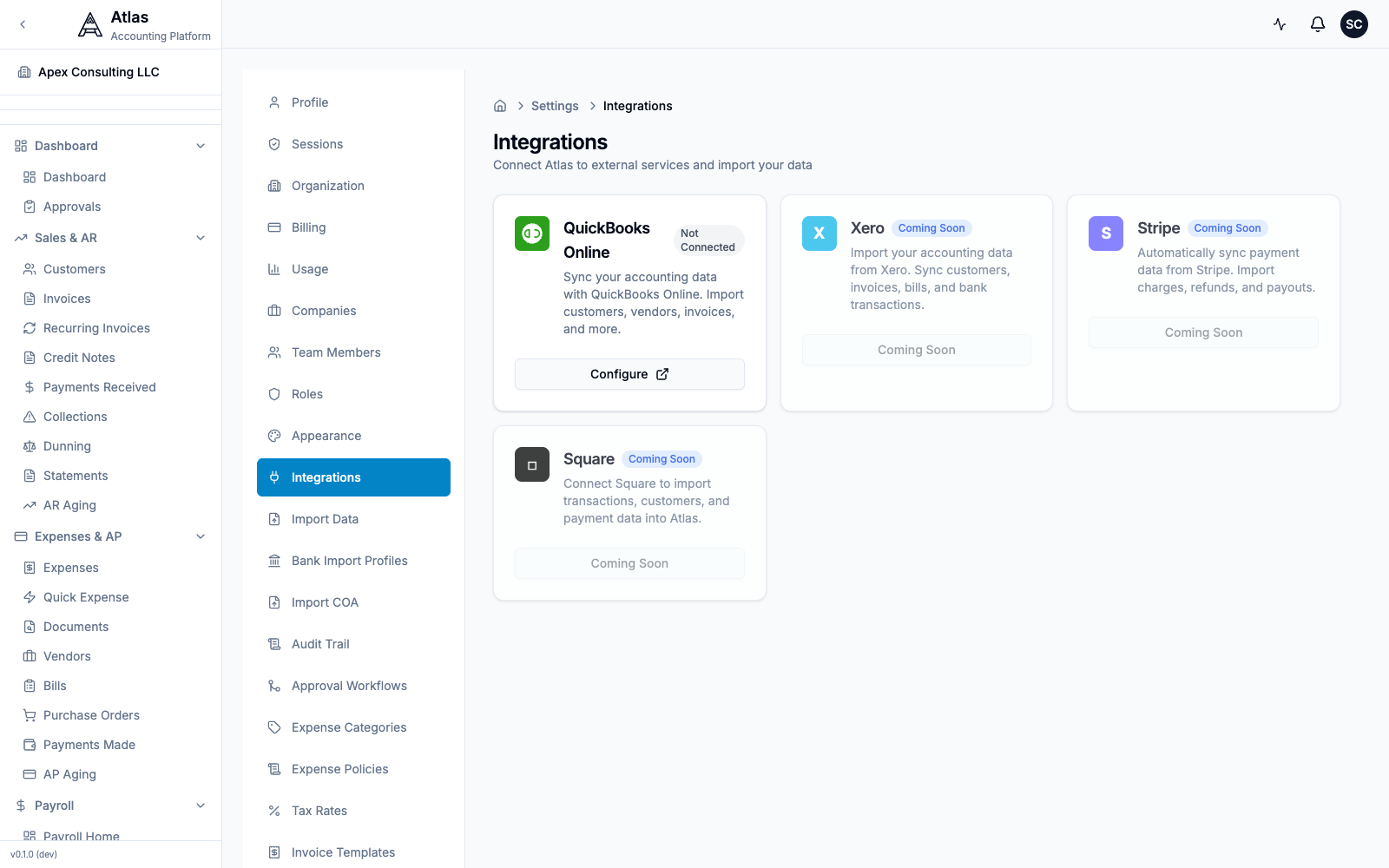 The Settings > Integrations screen. QuickBooks Online is connectable today; Xero is marked Coming Soon.
Step 1: Export from Xero
Export these from Xero (Accounting > Reports or Settings):
| Data | How to Export from Xero |
|---|---|
| Chart of Accounts | Accounting > Chart of Accounts > Export (CSV) |
| Contacts (Customers) | Contacts > filter Customers > Export |
| Contacts (Vendors) | Contacts > filter Suppliers > Export |
| Invoices | Business > Invoices > Export |
| Bills | Business > Bills to Pay > Export |
| Bank Transactions | Accounting > Bank Accounts > Account Transactions > Export |
| Manual Journals | Accounting > Manual Journals > Export |
Step 2: Import into Atlas
- Go to Settings > Import Data in Atlas
- Atlas accepts CSV (and IIF) files. To make sure your columns line up, download the matching CSV template — there are ready-made templates for Customers, Vendors, Chart of Accounts, Invoices, and Bills
- Upload your file and follow the 4-step wizard: Upload → Preview → Import → Complete
- Preview the data and resolve any conflicts, then confirm the import
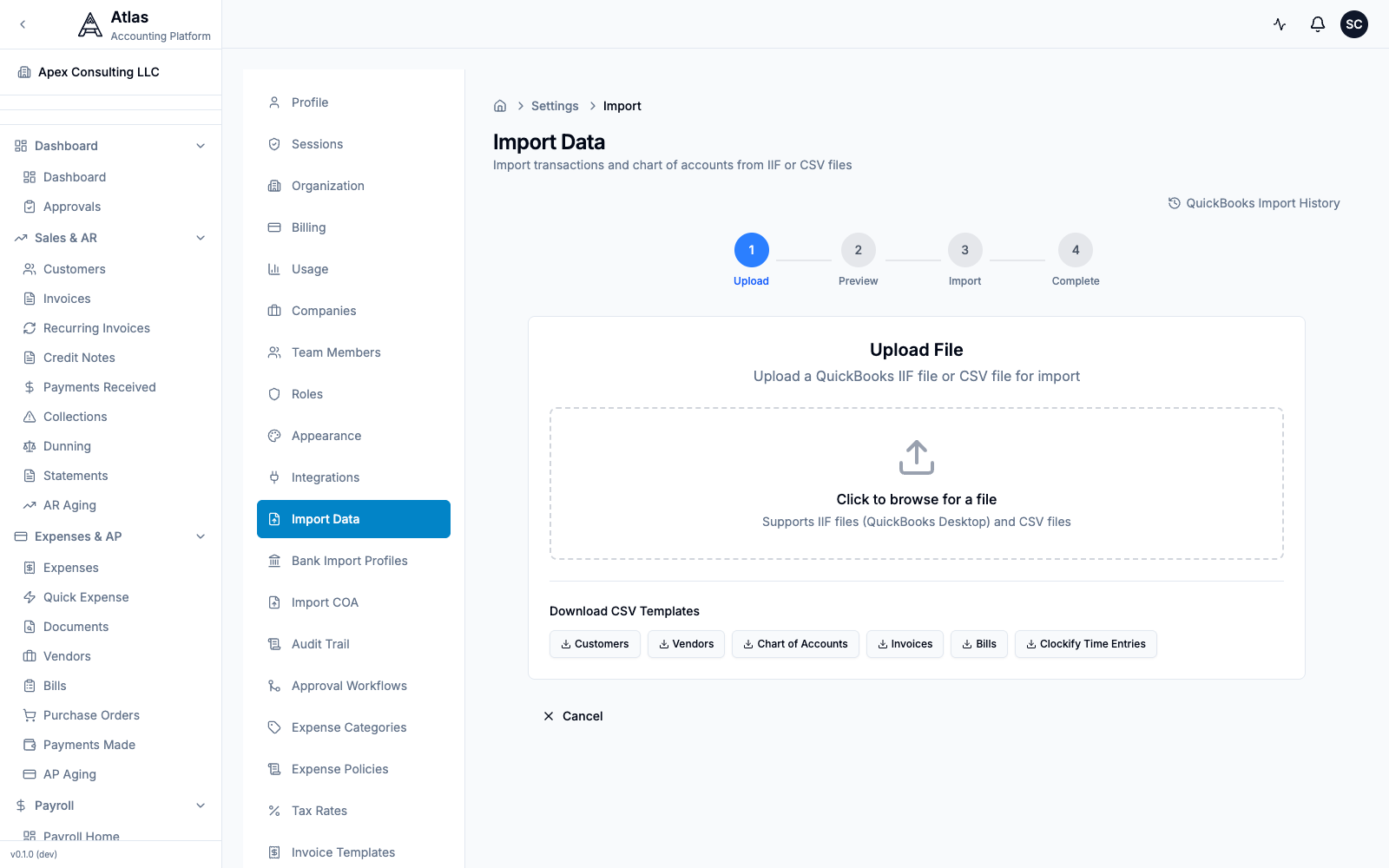 The Settings > Import Data screen: a 4-step Upload → Preview → Import → Complete wizard that accepts CSV or IIF files, with downloadable CSV templates for Customers, Vendors, Chart of Accounts, Invoices, and Bills.
Tip: to import just your chart of accounts, use Settings > Import COA (CSV or XLSX, with a downloadable template).
Step 3: Set Opening Balances
- Determine your cutover date (ideally month-end)
- Run a Trial Balance in Xero as of that date
- In Atlas onboarding, enter opening balances to match
- Verify Atlas Trial Balance matches Xero's
Step 4: Verify
- Compare P&L reports between Xero and Atlas for the same period
- Compare Balance Sheet totals
- Check AR and AP aging match
- Run one billing cycle in Atlas to confirm workflows work
10-Minute Setup Checklist
- Sign up and create your organization
- Run the onboarding wizard — company name, country (auto-fills currency/timezone)
- Chart of Accounts — import your Xero COA (CSV) or pick a template
- Opening balances — enter balances from your Xero Trial Balance
- Import customers and vendors — upload CSV exports from Xero
- Import open invoices and bills — bring over unpaid items
- Add bank accounts — connect for reconciliation
- Set up Dimensions — recreate your Xero Tracking Categories
- Invite your team — assign roles (accountant, bookkeeper, viewer)
- Run a Trial Balance — verify it matches Xero
Feature Comparison
| Feature | Xero | Atlas |
|---|---|---|
| Double-entry bookkeeping | Yes | Yes |
| Chart of Accounts | Yes | Yes (hierarchical, templated) |
| Invoicing | Yes + repeating | Yes + recurring + credit notes |
| Bills & AP | Yes | Yes + purchase orders |
| Bank reconciliation | Find & Match | AI-powered 4-axis matching |
| AI categorization | No | Yes (4-tier with confidence scoring) |
| Multi-company | Separate orgs | Multiple per organization |
| Consolidated reporting | No (third-party required) | Built-in (BS, P&L, CF, TB) |
| Intercompany eliminations | No | Yes |
| Users | Unlimited | Unlimited |
| Payroll | Regional add-on (AU, NZ, UK) | Built-in (US, UK, CA, AU, PK) |
| Multi-currency | Higher-tier plans | 150+ currencies (all plans) |
| FX revaluation | Manual | Automated |
| Inventory | Basic | FIFO, LIFO, Weighted Average |
| Fixed assets | Yes | Yes (3 depreciation methods) |
| Projects / time tracking | Yes | Yes |
| Budgets | Yes | Yes + variance analysis |
| Tracking / Dimensions | 2 categories max | Unlimited dimensions |
| Approval workflows | Limited | Multi-step with conditions |
| Audit trail | History & Notes | Full field-level audit trail |
| Tax compliance | Strong AU/NZ/UK | US, UK, CA, AU, EU, PK |
| API rate limits | 5,000/day, 60/min | Generous per-endpoint limits |
| Mobile app | Yes | Responsive web (native planned) |
FAQ
Q: Where are my Tracking Categories? A: Atlas calls them Dimensions. Go to Settings > Dimensions to create your segments (departments, projects, locations, etc.). Unlike Xero's limit of 2 tracking categories, Atlas supports unlimited dimensions.
Q: I have customers and suppliers in one Contacts list. How does Atlas handle this? A: Atlas separates Customers (for AR) and Vendors (for AP). When importing from Xero, filter your contacts export by type and import to the appropriate entity in Atlas.
Q: Can I import my Xero data directly (like the QuickBooks integration)? A: Not yet — a native Xero connector is listed as Coming Soon under Settings > Integrations. For now, export your data as CSV from Xero and import into Atlas using the import wizard. The process takes about 15 minutes for most businesses.
Q: Where are Manual Journals? A: They're called Journal Entries in Atlas. Find them in the sidebar under Journal Entries, or press Cmd+K and type "journal."
Q: What about Hubdoc for document capture? A: Atlas supports document attachments on transactions. Upload receipts and documents directly to invoices, bills, and journal entries. OCR-based receipt capture is planned.
Q: Does Atlas support GST/BAS (Australia)? A: Yes. Atlas has built-in BAS (Business Activity Statement) reporting for Australian companies, plus GST/HST for Canada, VAT MTD for UK, and VAT OSS for EU.
Q: How do I invite my accountant? A: Go to Settings > Team Members and invite them with the Accountant role. They'll have access to journal entries, period close, reports, and audit trail — without being able to modify user settings or billing.
See also: Migration Checklist | QuickBooks Guide | All Guides